


Elgato Stream Deck Mobile
4.7543.00 Reviews
App Specs
- Version
- 2.1.2
- Updated On
- License
- Free
- Downloads
- 1,000,000+
- Developer
- Corsair Memory, Inc.
- Categories
- Productivity
- Platform
- Android
Screenshots
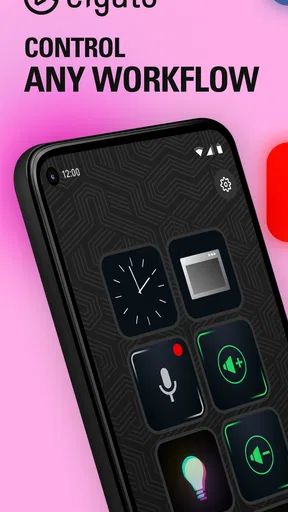
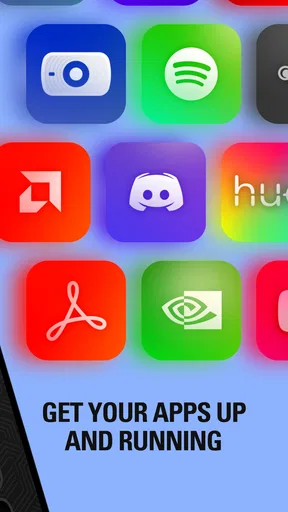
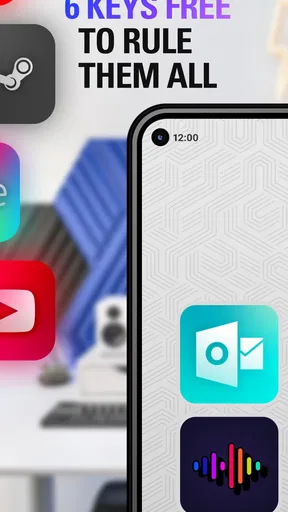
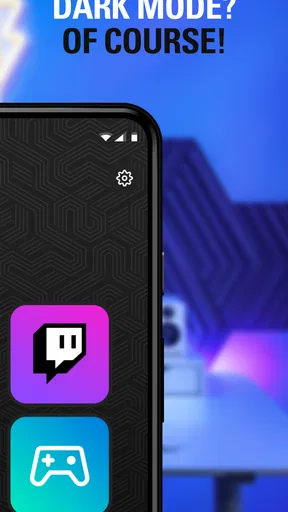
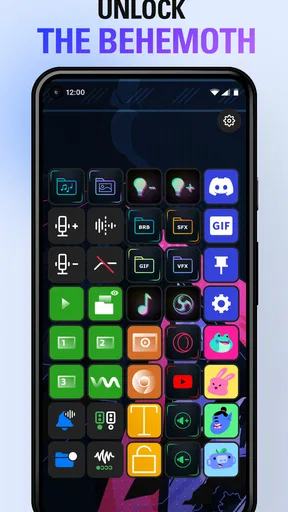
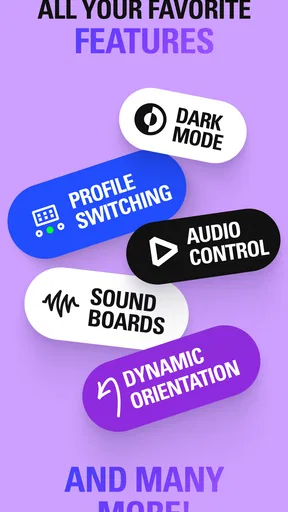
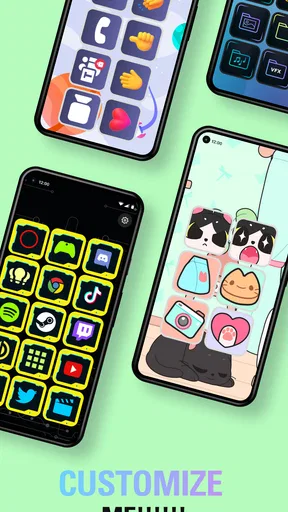
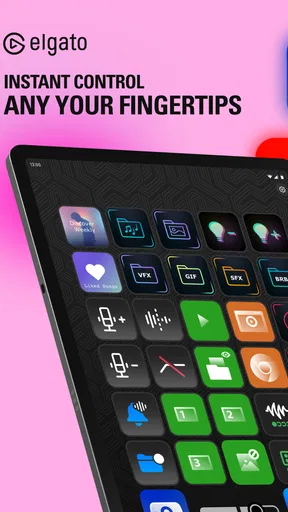
 Analysis by AppCompare
I like Elgato Stream Deck Mobile most when I think of it not as a miniature touchscreen keyboard, but as a way to make a few frequently repeated computer actions easier to reach. That distinction matters: it is a productivity app from Corsair Memory, Inc., built around controlling a computer workflow from a phone or tablet. It makes most sense when your hands are already near your phone and you have a set of commands worth turning into dedicated buttons. If you only need an occasional shortcut, a keyboard command or a free desktop utility may be simpler.
Where a phone-based command panel earns its place
The clearest benefit is reducing the small interruptions that accumulate during a stream, presentation, or work session. Instead of remembering which key combination changes a scene or searching through windows to open the right tool, I can put commonly used actions in one place and tap them. That is useful less because any one command is difficult, and more because a well-planned layout removes repeated context switching.
A practical setup starts with a short list rather than a screen packed with every possible action. I would put only the controls I use under pressure on the first page: perhaps a scene change, a microphone mute, and a way to start a recurring task. Less urgent commands can live elsewhere. This keeps the phone useful as a control surface instead of turning it into another menu I have to search while speaking.
That approach also helps answer a natural question: does the app replace a physical Stream Deck? Not entirely. A physical unit gives you separate keys you can locate by touch, which is reassuring when you cannot look away from a camera or presentation. The mobile version is more flexible about where the controls live and avoids adding another piece of hardware to the desk, but tapping a glass screen requires visual attention. I would choose the phone version for convenience and occasional use; someone who relies on precise, constant button presses may prefer dedicated hardware.
Useful beyond a live broadcast
Streaming is the obvious fit, but I find the more interesting use cases are often quieter. During a remote meeting, a small set of controls can put the actions I reach for most within easy reach. For a presentation, I might reserve a simple layout for advancing or managing the session, rather than keeping a collection of unrelated desktop shortcuts in view. In either case, the benefit depends on matching the buttons to a real routine, not on having the largest possible collection.
For a realistic evening workflow, imagine preparing a stream after work. I would open the desktop tools I need, keep the phone beside the keyboard, and use a focused set of controls for recurring actions while leaving the mouse free for the content itself. Once the stream ends, a different arrangement could serve a work session or presentation. The important trade-off is that switching contexts is only convenient if the profiles are organized clearly; a confusing collection of pages can cost more time than it saves.
It can also be a modest accessibility aid for someone who finds a particular action awkward to reach on a keyboard, though it should not be treated as a full replacement for accessible input options built into a computer. A phone screen still requires accurate taps, and the usefulness of each control depends on the computer-side setup. I would test the handful of actions that matter most before making it central to an important routine.
Worth Reading Before You Choose

EA SPORTS FC Mobile 26 Is a Bigger Football Game, but It Takes Time

Flipboard Shows What News Apps Must Do Beyond the Feed

Switching to Android Auto Means Rethinking Your Driving Routine

Google Calendar Makes a Crowded Week Easier to Manage

Ludo King Makes the Most of the Minutes Between Plans

Baby Panda World Brings Quick Play to Modern Phones, but Its Game Library Feels Busy
Plan the layout before adding more buttons
One non-obvious way to get more from a customizable control surface is to organize it around moments in a task, not around software names. For example, a “starting” group can contain the commands used before a broadcast, while a live-work group contains only controls needed during it. That mental grouping makes a layout easier to scan under pressure and reduces the temptation to scatter similar actions across several pages.
I would also give each button a clear, distinct label and avoid relying on memory for similar-looking controls. A setup that makes sense during a relaxed test can become less obvious when a meeting is underway. Testing a profile with the actual apps and actions you plan to use is more valuable than designing an elaborate arrangement in the abstract. If a button is rarely tapped, it probably does not deserve a prominent spot.
Another useful trade-off is deciding what should remain on the keyboard. Commands that are already easy to remember and execute may not need a phone button at all. The app is most helpful for actions that are easy to forget, awkward to reach, or disruptive to find in a desktop interface. Keeping the phone layout selective makes it a complement to familiar computer controls rather than a second, competing control system.
Seamless Setup and Intuitive Interface
First things first, setting up the Elgato Stream Deck Mobile is a breeze. I mean, if you can download an app and scan a QR code, you’re already halfway there. The app syncs effortlessly with your PC, and before you know it, you’re diving into a world of endless customization.
The interface is as intuitive as it gets. I remember being genuinely surprised at how easy it was to navigate. Everything is laid out in a way that even if you’re not tech-savvy, you’ll feel right at home. The app mimics the physical Stream Deck, but with the added convenience of being on your phone. Talk about having power at your fingertips!
Customization Galore
One of my favorite parts about using this app is the sheer amount of customization it offers. You can create multiple profiles for different tasks, whether it's streaming, editing, or even just day-to-day productivity. It's like having a Swiss Army knife tailored specifically for your needs.
You can assign hotkeys, open apps, switch scenes, and even send tweets, all with a single tap. The drag-and-drop feature for creating these shortcuts is incredibly user-friendly. I found myself playing around with different configurations just for the fun of it. The possibilities are virtually limitless!
Performance and Reliability
Now, let’s talk performance. The app is smooth and responsive. In my experience, there was no noticeable lag between tapping an icon and executing the command. It’s reliable, which is crucial when you’re live and things need to work on cue. The connection between the app and my PC was stable, and I didn’t encounter any drop-offs. This reliability gives you peace of mind, knowing your stream won’t suddenly go haywire.
Even so, I would not make a phone-based control the only way to perform an action that must work at a critical moment. For a live session, keep an ordinary keyboard or mouse route available for the few commands that matter most. That is not a knock on the app so much as a sensible backup plan: a phone can be picked up, moved, or locked at an inconvenient time, and a control system should not leave you stuck if your preferred input is out of reach.
More Than Just Streaming
While it shines brightest for streaming, the app isn’t a one-trick pony. I’ve started using it for other tasks like managing my music and controlling presentations. The flexibility it offers makes it a tool worth having, even if you’re not a full-time streamer.
For those working from home, it can be a game-changer. Imagine conducting a meeting and seamlessly switching between documents or muting your mic with ease. It streamlines tasks and helps keep your workflow smooth and efficient.
Compared with the usual alternatives, the main choice is between this kind of dedicated touch interface, keyboard shortcuts, and physical macro hardware. Keyboard shortcuts cost nothing extra if you already know them, and they are faster for actions your fingers remember. A hardware pad is easier to operate by feel and does not depend on using a phone screen. The mobile app sits between those options: it can keep a customized set of controls close at hand without adding a device to the desk, but it asks you to look and tap. I would not recommend it as a shortcut solution for someone who is already quick and comfortable with keyboard commands.
It is also worth thinking about the computer relationship before building a workflow around it. The app is intended to control desktop activity, so a phone alone is not the whole setup. If you want a self-contained mobile productivity tool, or expect it to manage tasks without a computer connection, this is not the right category of app. For someone whose work already happens at a computer, however, that companion role is exactly what makes the idea useful.
Worth the Investment?
Alright, let’s address the elephant in the room: is it worth the price? The app does come with a subscription model, which might be a turn-off for some. However, considering the amount of functionality it packs, I’d say it’s a worthy investment, especially if you’re serious about streaming or optimizing your workflow.
The app is free to download, while in-app purchases range from $2.99 to $49.99 per item. I would treat that as a reason to try the basic workflow before spending, rather than assuming every user needs a paid option. The store rating is 4.6 from around 7,800 ratings, and it has passed 500,000 installs, which suggests that it has found a substantial audience. Those figures do not tell me whether it suits a particular setup, though; the best test is whether a small, carefully chosen group of controls saves you effort often enough to justify paying.
The practical audience is fairly specific. Streamers who change scenes or trigger actions regularly are the obvious match, as are people who give presentations or repeat a small set of desktop tasks throughout the day. It is less compelling for someone who rarely uses shortcuts, does not want to keep a phone beside a computer, or prefers tactile buttons. The Everyone content rating makes it broadly suitable from an age standpoint, but it does not change the fact that the app’s value depends on having a compatible desktop workflow to control.
The current version is 2.1.0 and requires iOS 9 or later. Before building a routine around it, I would check that the phone or tablet and desktop arrangement you intend to use can support the connection and commands you need. That small compatibility check is more useful than planning a large profile first, especially if the app will be used during a presentation or live broadcast.
The convenience of having a fully customizable command center right on your smartphone is something that can’t be understated. It’s like having a personal assistant dedicated to making your digital life smoother.
In conclusion, the Elgato Stream Deck Mobile is a fantastic tool that brings versatility and efficiency to both streaming and everyday tasks. Its easy setup, intuitive design, and robust performance make it a must-have for anyone looking to elevate their digital game. Give it a try, and you might find yourself wondering how you ever managed without it!
Pros
- Seamlessly integrates with OBS Studio.
- Customizable buttons for quick access.
- Connects via Wi-Fi for easy setup.
- Supports multiple profiles for versatility.
- Regular updates enhance functionality.
Cons
- Subscription required for full features.
- Limited to iOS
- no Android version.
- Requires constant Wi-Fi connection.
- Initial setup can be time-consuming.
- Consumes significant battery power.
FAQs for Elgato Stream Deck Mobile
What is Elgato Stream Deck Mobile and how does it work?
Elgato Stream Deck Mobile is an app that transforms your smartphone into a customizable control pad for streaming and productivity tasks. It connects to your desktop software via Wi-Fi, allowing you to control apps, switch scenes, launch media, and more with a single tap. The app mimics the functionality of the physical Stream Deck device, offering a highly personalized experience.
Is Elgato Stream Deck Mobile compatible with all streaming platforms?
Yes, Elgato Stream Deck Mobile is compatible with a variety of popular streaming platforms, including Twitch, YouTube, and Facebook Live. It integrates seamlessly with streaming software like OBS Studio and Streamlabs, allowing you to control broadcasts, manage scenes, and engage with your audience effortlessly. Compatibility ensures a versatile streaming setup.
What are the main features of Elgato Stream Deck Mobile?
The app offers customizable buttons, allowing you to create shortcuts for various tasks such as launching applications, controlling media, and managing social media interactions. It supports drag-and-drop functionality for easy setup, integrates with multiple services, and provides visual feedback through dynamic icons. The app enhances both streaming and productivity workflows.
Are there any subscription fees or in-app purchases for Elgato Stream Deck Mobile?
Elgato Stream Deck Mobile requires a subscription for full access to its features. Users can opt for a monthly or annual subscription plan, both of which offer a free trial period. This subscription model ensures users receive regular updates and support, making it a valuable tool for serious streamers and content creators.
What devices and operating systems support Elgato Stream Deck Mobile?
Elgato Stream Deck Mobile is available for both iOS and Android devices. It requires iOS 14.0 or later and Android 6.0 or newer. The app is compatible with iPhones, iPads, and a wide range of Android smartphones and tablets, ensuring broad accessibility for users on different platforms.


